


 收藏人数:
收藏人数:
 购买源码授权版(
 试用
试用
 使用 HBuilderX 导入示例项目
 赞赏(0)
赞赏(0)
更新记录
1.1.3(2026-08-18)
- 优化统一导出问题
- 优化文档说明
- 修复插件使用导入路径报错问题
1.1.2(2026-08-18)
- 优化统一导出问题
1.1.1(2026-08-18)
1.1.1(2026-08-18)
- 优化不同卡片进场延时动画设置
- 优化在鸿蒙平台的显示效果
平台兼容性
uni-app x(4.76)
| Chrome | Safari | Android | iOS | 鸿蒙 | 微信小程序 |
|---|---|---|---|---|---|
| √ | √ | √ | √ | √ | √ |
其他
| 多语言 | 暗黑模式 | 宽屏模式 | 蒸汽模式 |
|---|---|---|---|
| √ | √ | √ | × |
Guide Page 引导页组件
该组件基于 uni-app x 开发的的 Guide Page 引导页组件,用于应用首次启动时的新手引导场景,支持全屏引导页、新功能引导、步骤引导,支持多页滑动展示、卡片动画、高度自定义样式,支持 App、H5、微信小程序全平台。
平台差异说明
仅支持 uni-app x 项目
| App | H5 | 微信小程序 |
|---|---|---|
| √ | √ | √ |
Guide Page 官方文档
预览效果
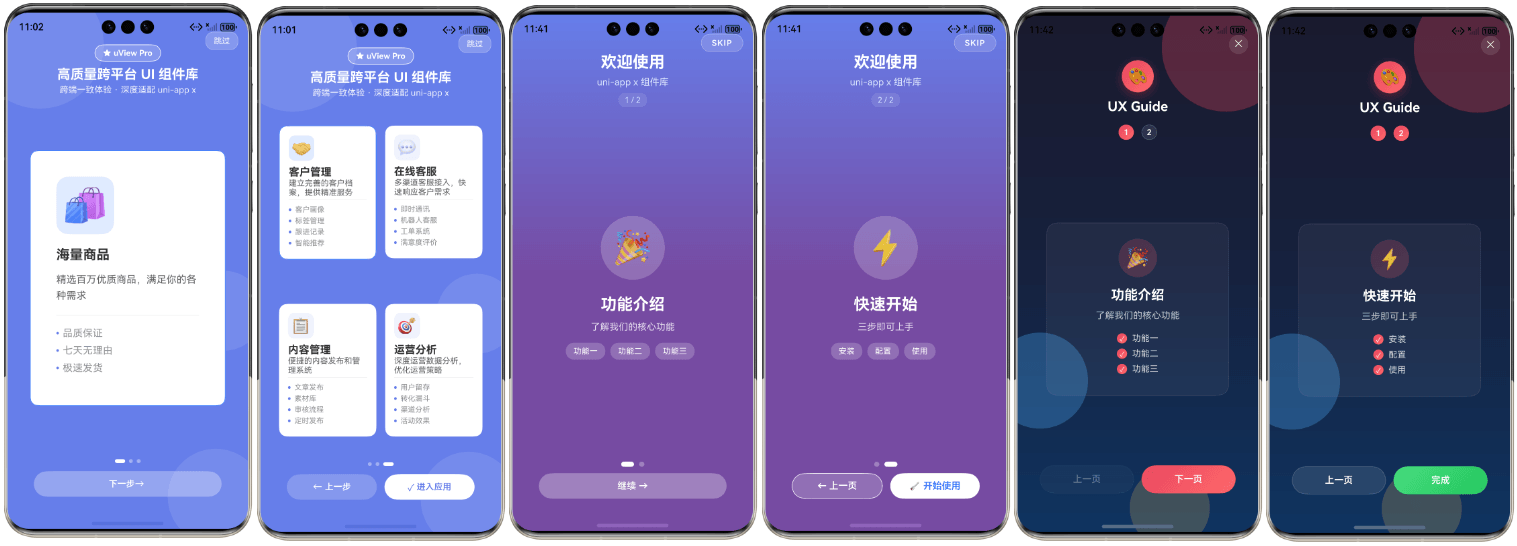
基本使用
首先,引导页需要全屏展示,所以 pages.json 中添加 "navigationStyle": "custom" 配置:
{
  "pages": [
    {
      "path": "pages/demo/index",
      "style": {
        "navigationBarTitleText": "uView Pro X 演示",
        "navigationStyle": "custom"
      }
    }
  ]
}- 通过
v-model:show控制引导页的显示与隐藏 - 通过
slides传入引导页数据,支持多页配置 - 通过
storage-key设置本地存储键名,自动记录用户是否已查看过引导页
<template>
    <ux-guide-page
        v-model:show="showGuide"
        :slides="slides"
        storage-key="app_guide_shown"
        @complete="onComplete"
    ></ux-guide-page>
</template>

<script setup lang="ts">
import { ref } from 'vue'
import type { OnboardingSlide } from '@/uni_modules/ux-guide-x/index'

const showGuide = ref(true)

const slides = ref<OnboardingSlide[]>([
    {
        cards: [
            {
                icon: '🚀',
                title: '快速上手',
                desc: '简单几步即可开始使用我们的应用',
                position: 'center',
                features: ['一键登录', '智能推荐', '个性定制']
            }
        ]
    },
    {
        cards: [
            {
                icon: '💡',
                title: '核心功能',
                desc: '探索应用的强大功能',
                position: 'center',
                features: ['实时同步', '数据分析', '云端存储']
            }
        ]
    }
])

function onComplete() {
    console.log('引导完成')
    // 跳转到首页
    uni.switchTab({ url: '/pages/index/index' })
}
</script>
多卡片布局
每个页面支持配置多个卡片,卡片可以设置不同的位置(左上、右上、居中、左下、右下)。
<template>
    <ux-guide-page v-model:show="showGuide" :slides="multiCardSlides"></ux-guide-page>
</template>

<script setup lang="ts">
import { ref } from 'vue'
import type { OnboardingSlide } from '@/uni_modules/ux-guide-x/index'

const showGuide = ref(true)

const multiCardSlides = ref<OnboardingSlide[]>([
    {
        cards: [
            {
                icon: '📊',
                title: '数据分析',
                desc: '实时查看业务数据',
                position: 'top-left'
            },
            {
                icon: '🔔',
                title: '消息通知',
                desc: '及时获取重要信息',
                position: 'top-right'
            },
            {
                icon: '👤',
                title: '个人中心',
                desc: '管理个人信息',
                position: 'bottom-left'
            },
            {
                icon: '⚙️',
                title: '系统设置',
                desc: '自定义应用配置',
                position: 'bottom-right'
            }
        ]
    }
])
</script>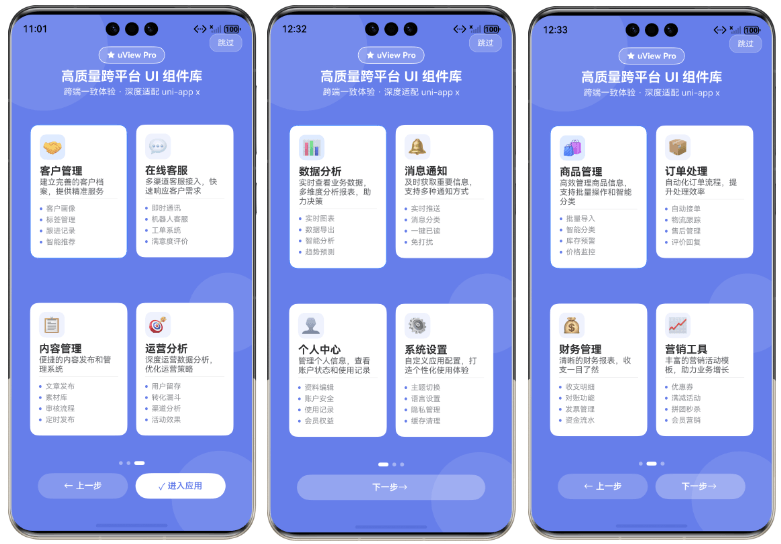
自定义卡片内容
可以单独自定义卡片的图标和内容部分:
<template>
    <ux-guide-page v-model:show="showGuide" :slides="slides">
        <!-- 自定义卡片图标 -->
        <template #card-icon="{ card, index, cIndex }">
            <view class="custom-icon">
                <image :src="card.icon" mode="aspectFit"></image>
            </view>
        </template>

        <!-- 自定义卡片内容 -->
        <template #card-content="{ card, index, cIndex }">
            <view class="custom-content">
                <text class="title">{{ card.title }}</text>
                <text class="desc">{{ card.desc }}</text>
                <view class="features">
                    <text v-for="(feature, i) in card.features" :key="i">
                        {{ feature }}
                    </text>
                </view>
            </view>
        </template>
    </ux-guide-page>
</template>
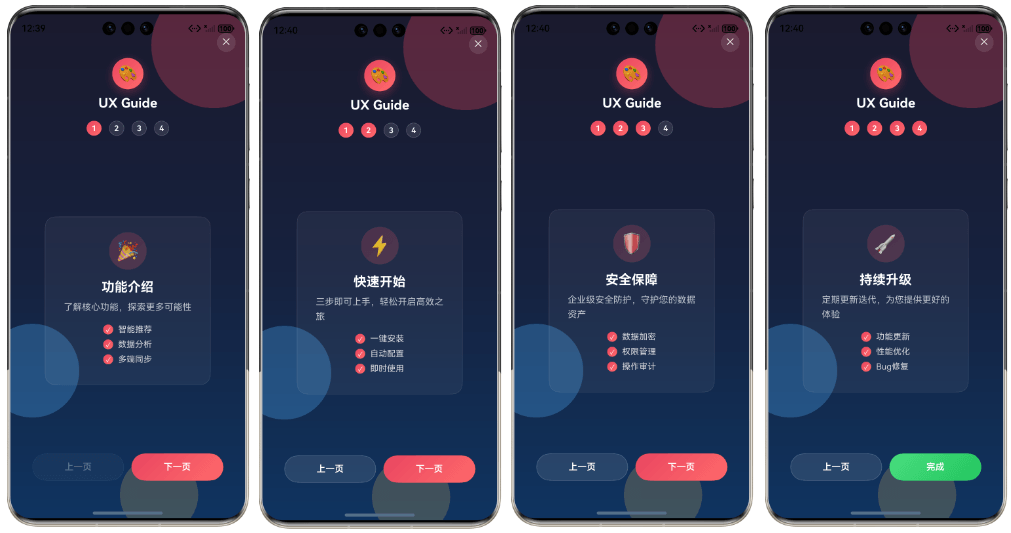
自定义样式
组件提供了丰富的 slot,可以完全自定义引导页的各个部分:
<template>
    <ux-guide-page v-model:show="showGuide" :slides="slides">
        <!-- 自定义背景 -->
        <template #background>
            <view class="custom-bg">
                <view class="gradient-circle"></view>
            </view>
        </template>

        <!-- 自定义跳过按钮 -->
        <template #skip="{ onSkip }">
            <view class="skip-btn" @click="onSkip">
                <text>跳过</text>
            </view>
        </template>

        <!-- 自定义头部 -->
        <template #header="{ current, total }">
            <view class="custom-header">
                <text>步骤 {{ current + 1 }} / {{ total }}</text>
            </view>
        </template>

        <!-- 自定义页面内容 -->
        <template #slide="{ slide, index, isActive }">
            <view v-if="isActive" class="custom-slide">
                <text class="title">{{ slide.cards[0].title }}</text>
                <text class="desc">{{ slide.cards[0].desc }}</text>
            </view>
        </template>

        <!-- 自定义指示器 -->
        <template #dots="{ current, total }">
            <view class="custom-dots">
                <view
                    v-for="i in total"
                    :key="i"
                    :class="['dot', { active: i - 1 === current }]"
                ></view>
            </view>
        </template>

        <!-- 自定义操作按钮 -->
        <template #actions="{ isFirst, isLast, onPrev, onNext, onComplete }">
            <view class="custom-actions">
                <button v-if="!isFirst" @click="onPrev">上一步</button>
                <button v-if="!isLast" @click="onNext">下一步</button>
                <button v-if="isLast" @click="onComplete">开始使用</button>
            </view>
        </template>
    </ux-guide-page>
</template>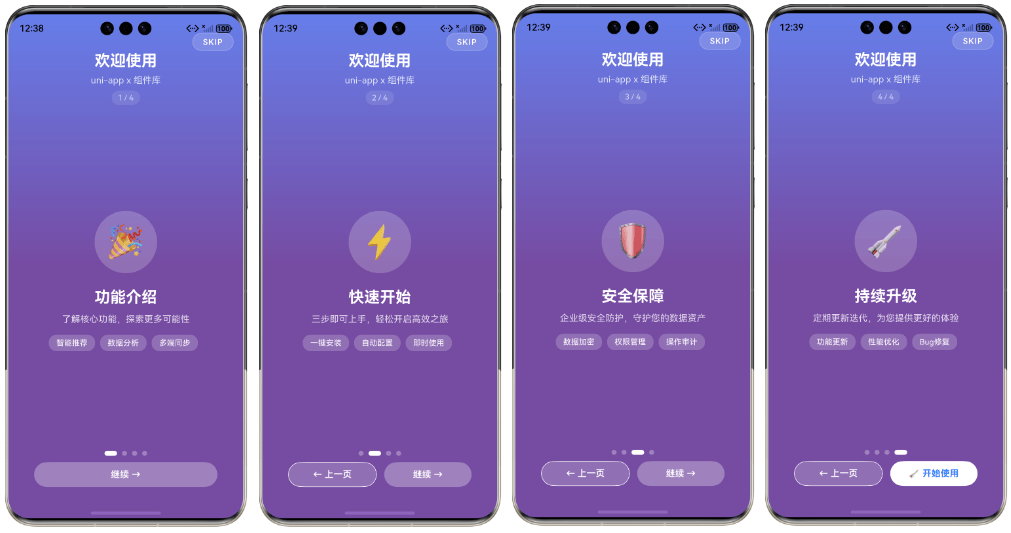
双向绑定(v-model:show)
组件支持 v-model:show 双向绑定,可以更方便地控制引导页的显示状态。
<template>
    <ux-guide-page v-model:show="showGuide" :slides="slides"></ux-guide-page>
    <button @click="showGuide = true">重新显示引导</button>
</template>

<script setup lang="ts">
import { ref } from 'vue'

const showGuide = ref(false)
const slides = ref([...])
</script>
控制显示元素
通过 props 可以控制引导页各部分的显示与隐藏:
<template>
    <!-- 隐藏跳过按钮和指示器 -->
    <ux-guide-page
        v-model:show="showGuide"
        :slides="slides"
        :show-skip="false"
        :show-dots="false"
    ></ux-guide-page>

    <!-- 隐藏头部和操作按钮 -->
    <ux-guide-page
        v-model:show="showGuide"
        :slides="slides"
        :show-header="false"
        :show-actions="false"
    ></ux-guide-page>
</template>
监听事件
组件提供了丰富的事件回调:
<template>
    <ux-guide-page
        v-model:show="showGuide"
        :slides="slides"
        @change="onChange"
        @complete="onComplete"
        @skip="onSkip"
    ></ux-guide-page>
</template>

<script setup lang="ts">
import { ref } from 'vue'

const showGuide = ref(true)
const slides = ref([...])

function onChange(index: number) {
    console.log('切换到第', index + 1, '页')
}

function onComplete() {
    console.log('引导完成')
    // 引导完成后跳转到首页
    uni.switchTab({ url: '/pages/index/index' })
}

function onSkip() {
    console.log('用户跳过了引导')
    // 跳过引导也跳转到首页
    uni.switchTab({ url: '/pages/index/index' })
}
</script>
禁用滑动切换
如果不希望用户通过滑动切换页面,可以禁用滑动功能:
<ux-guide-page
    v-model:show="showGuide"
    :slides="slides"
    :enable-swipe="false"
></ux-guide-page>
手动控制页面跳转
可以通过 ref 获取组件实例,手动控制页面跳转:
<template>
    <ux-guide-page ref="guideRef" v-model:show="showGuide" :slides="slides"></ux-guide-page>
    <button @click="goToPage(2)">跳转到第3页</button>
</template>

<script setup lang="ts">
import { ref } from 'vue'

const showGuide = ref(true)
const slides = ref([...])
const guideRef = ref()

function goToPage(index: number) {
    guideRef.value?.goToSlide(index)
}
</script>
平台适配注意事项
App 端 linear-gradient 限制
App 端 linear-gradient 需要三个色值才能生效:
/* ✅ 正确 */
.custom-bg {
    background: linear-gradient(180deg, #667eea 0%, #764ba2 50%, #764ba2 100%);
}

/* ❌ 错误 - 两个色值在 App 端不生效 */
.custom-bg {
    background: linear-gradient(180deg, #667eea 0%, #764ba2 100%);
}
App 端动画实现
App 端不支持 @keyframes,请使用 transition:
/* ✅ 正确 - 使用 transition */
.card {
    opacity: 0;
    transform: translateY(30rpx);
    transition: all 0.4s ease;
}

.card-visible {
    opacity: 1;
    transform: translateY(0);
}

/* ❌ 错误 - App 端不支持 */
@keyframes fadeIn {
    from { opacity: 0; }
    to { opacity: 1; }
}
API
Props
| 参数 | 说明 | 类型 | 默认值 | 可选值 | 版本 |
|---|---|---|---|---|---|
| show | 是否显示引导页(支持 v-model:show) | Boolean | false | true/false | - |
| storageKey | 本地存储键名,用于记录用户是否已查看引导 | String | - | - | - |
| slides | 引导页数据数组 | Array | [] | - | - |
| enableSwipe | 是否允许滑动切换页面 | Boolean | true | true/false | - |
| showDots | 是否显示页面指示器 | Boolean | true | true/false | - |
| showSkip | 是否显示跳过按钮 | Boolean | true | true/false | - |
| showHeader | 是否显示头部区域 | Boolean | true | true/false | - |
| showActions | 是否显示底部操作按钮 | Boolean | true | true/false | - |
Slides 数据结构
type OnboardingCard = {
    icon: string;              // 卡片图标(可以是 emoji 或图片 URL)
    title: string;             // 卡片标题
    desc: string;              // 卡片描述
    position: 'top-left' | 'top-right' | 'center' | 'bottom-left' | 'bottom-right';
    features?: string[];       // 特性列表(可选)
    delay?: number;            // 动画延迟时间(毫秒,可选)
}

type OnboardingSlide = {
    cards: OnboardingCard[];   // 该页面的卡片数组
}
Methods
| 名称 | 说明 | 参数 | 版本 |
|---|---|---|---|
| goToSlide | 跳转到指定页面 | (index: number) | - |
| handleNext | 切换到下一页 | - | - |
| handlePrev | 切换到上一页 | - | - |
| handleComplete | 完成引导 | - | - |
Slots
| 名称 | 说明 | 作用域参数 | 版本 |
|---|---|---|---|
| background | 自定义背景 | - | - |
| skip | 自定义跳过按钮 | { onSkip } | - |
| header | 自定义头部 | { current, total } | - |
| slide | 自定义页面内容 | { slide, index, isActive } | - |
| card-icon | 自定义卡片图标 | { card, index, cIndex } | - |
| card-content | 自定义卡片内容 | { card, index, cIndex } | - |
| dots | 自定义页面指示器 | { current, total } | - |
| actions | 自定义操作按钮 | { current, total, isFirst, isLast, onPrev, onNext, onComplete } | - |
Events
| 事件名 | 说明 | 回调参数 | 版本 |
|---|---|---|---|
| change | 页面切换时触发 | (index: number) | - |
| complete | 点击完成按钮时触发 | - | - |
| skip | 点击跳过按钮时触发 | - | - |
| update:show | v-model:show 双向绑定事件 | (show: boolean) | - |


 下载 6908
 赞赏 85
赞赏 85


 下载 12651405
 赞赏 1953





























 赞赏
赞赏

 京公网安备:11010802035340号